

Free shipping progress bar
Show shoppers how close they are to free shipping, and unlock discounts or free gifts as the cart grows.
The shipping meter is a progress bar inside the cart drawer. It tells shoppers how much more they need to spend to get free shipping, for example “Add $24.05 more for free shipping”. It can also track reward tiers: a percentage discount, a fixed discount or a free gift that unlocks at a higher cart total.
How the free shipping goal is set
CartPops reads the goal from WooCommerce. It looks for a Free shipping method with a minimum order amount in the shipping zone that matches the shopper. You set the amount in WooCommerce, not in CartPops.
In wp-admin, go to WooCommerce > Settings > Shipping and open a shipping zone, or add a new one.
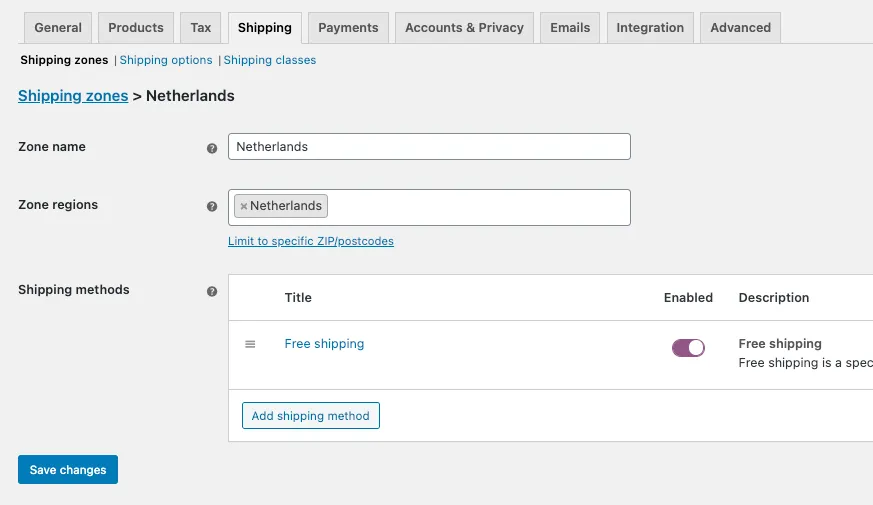
Add the Free shipping method to the zone and turn it on. Click it to edit it.
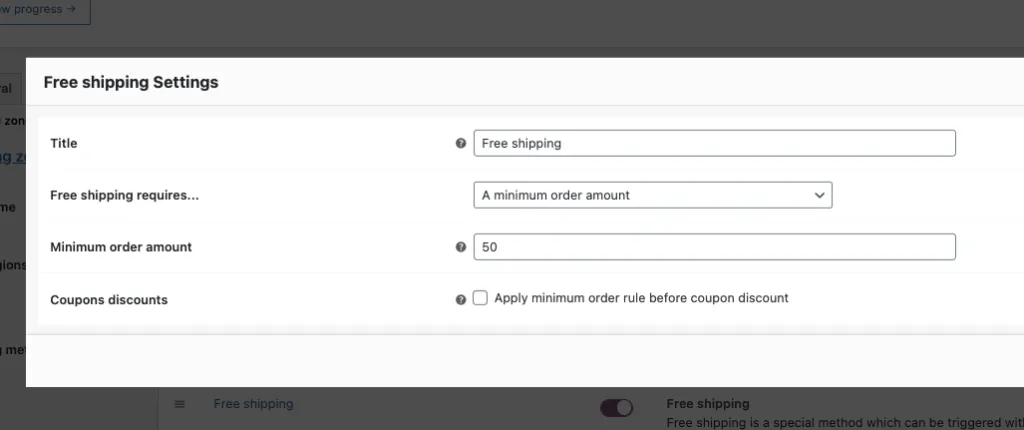
Under Free shipping requires…, choose A minimum order amount (or a setting that includes it) and enter the Minimum order amount.
Go to WooCommerce > CartPops > Drawer > Shipping meter and switch on Enable Shipping Meter. Click Save Changes.
CartPops matches the shopper’s address against your shipping zones, the same way WooCommerce does at checkout. If you ship to several countries with different free shipping amounts, the bar shows the amount for the shopper’s zone.
When the free shipping bar doesn’t show
The free shipping part of the bar appears only when WooCommerce has a matching zone with an enabled Free shipping method that requires a minimum order amount, alone or together with a coupon. If your zone has no such method, there’s no free shipping goal to show. The bar then appears only if you have reward tiers set up.
Shops that change WooCommerce’s shipping methods heavily with other plugins can see different results. Test the bar after you turn it on.
Settings
You set up the meter on the Shipping meter tab. A live preview of the drawer sits beside it.
General
- Enable Shipping Meter turns the progress bar on or off.
Tier 1: Free Shipping
Open Tier 1 to adjust the free shipping goal:
- Threshold can make the goal higher than the WooCommerce minimum. It can’t make it lower, and it can’t create a free shipping goal on its own. If you leave it at 0, CartPops uses the WooCommerce amount.
- Show Celebration plays a confetti animation when the shopper reaches free shipping.
- Progress Message is the text shown while the shopper is below the goal.
- Qualified Message is the text shown once they reach it.
Messages
Write your own messages with these placeholders:
| Placeholder | Output | Example |
|---|---|---|
{{amount}} |
How much more the shopper needs to spend | $24.05 |
{{country}} |
The shopper’s country code | NL |
{{flag}} |
The matching emoji flag | 🇳🇱 |
{{reward}} |
The name of the reward being worked toward | Free Shipping |
The default messages are “Add {{amount}} more for free shipping” and “You have qualified for free shipping!”. Messages are plain text, so don’t add HTML.
Some examples you can copy:
Only {{amount}} away from free shipping to {{country}} {{flag}}{{flag}} You're {{amount}} away from free shipping {{flag}}Amount left for free shipping: {{amount}}Reward tiers
Click + Add Tier to add a reward that unlocks at a higher cart total. You can add up to two reward tiers after Tier 1, so the bar can show three goals in total. Each tier has:
- Enable: switch a tier on or off without deleting it.
- Threshold: the cart subtotal needed to unlock the reward.
- Reward Type: Percentage Discount, Fixed Discount or Free Gift.
- Discount %, Discount Amount or Free Gift Product: the reward itself. Percentages go up to 100. For a gift, search for a simple product by name. To use a specific variation, enter its exact variation ID.
- Show Celebration: confetti when the shopper reaches this tier.
- Progress Message and Qualified Message: use
{{amount}}and{{reward}}in them.
Click Remove Tier on a tier to delete it. The bar sorts tiers by threshold, lowest first.
How rewards are applied:
- Discounts are applied as a single coupon line called Cart Reward. It stacks with the coupons your shoppers apply. It never discounts shipping.
- If a shopper reaches more than one discount tier, the discounts add up.
- A free gift is added to the cart automatically at quantity 1 with no charge. Shoppers can’t change its quantity. CartPops removes it if the cart total drops below the threshold.
- A discount can’t take the cart below zero.
Display
- Show in drawer shows the bar in the cart drawer. It is on by default.
- Show icon shows a truck or checkmark icon before the message.
- Show truck indicator shows a moving truck on the bar. It’s hidden while reward tiers are active.
- Enable shipping calculator lets shoppers estimate shipping from the drawer. See Shipping calculator.
Colors
Progress Colors style the bar while the shopper is below the goal: Bar Start, Bar End, Background, Text, Icon Background and Icon Color. With no reward tiers, you also get Truck Background and Truck Icon. With reward tiers, you get Tier Reached and Tier Icon.
Qualified Colors style the same elements after the shopper reaches the goal.
Show the meter outside the drawer
On a block theme, add the CartPops Shipping & Rewards Meter block in the Site Editor, for example on your cart page. It uses the same settings, colors and messages as the drawer meter. The block has no settings of its own. Enable Shipping Meter must be on for it to appear.
Good to know
- Reward tier thresholds use the cart subtotal before coupons. The free shipping goal follows the WooCommerce rule instead: in the Free shipping settings, Coupons discounts (Apply minimum order rule before coupon discount) decides whether coupons count toward the minimum.
- The meter updates as the shopper changes the cart.
- If your Pro license expires, your meter settings are kept but the meter and rewards stop. They return when the license is active again.
- The progress and qualified messages can be translated with a translation plugin. See Translating CartPops.